Upgrade Paths vSphere to VCF 9.0.x | How do we get there from here? |

Navigating Your Path to VCF 9: A Unified Journey for Every Environment
The vision for a truly unified private cloud is finally here with VMware Cloud Foundation (VCF) 9.
But if you are looking at your current data center footprint, you might be asking yourself a very practical question:
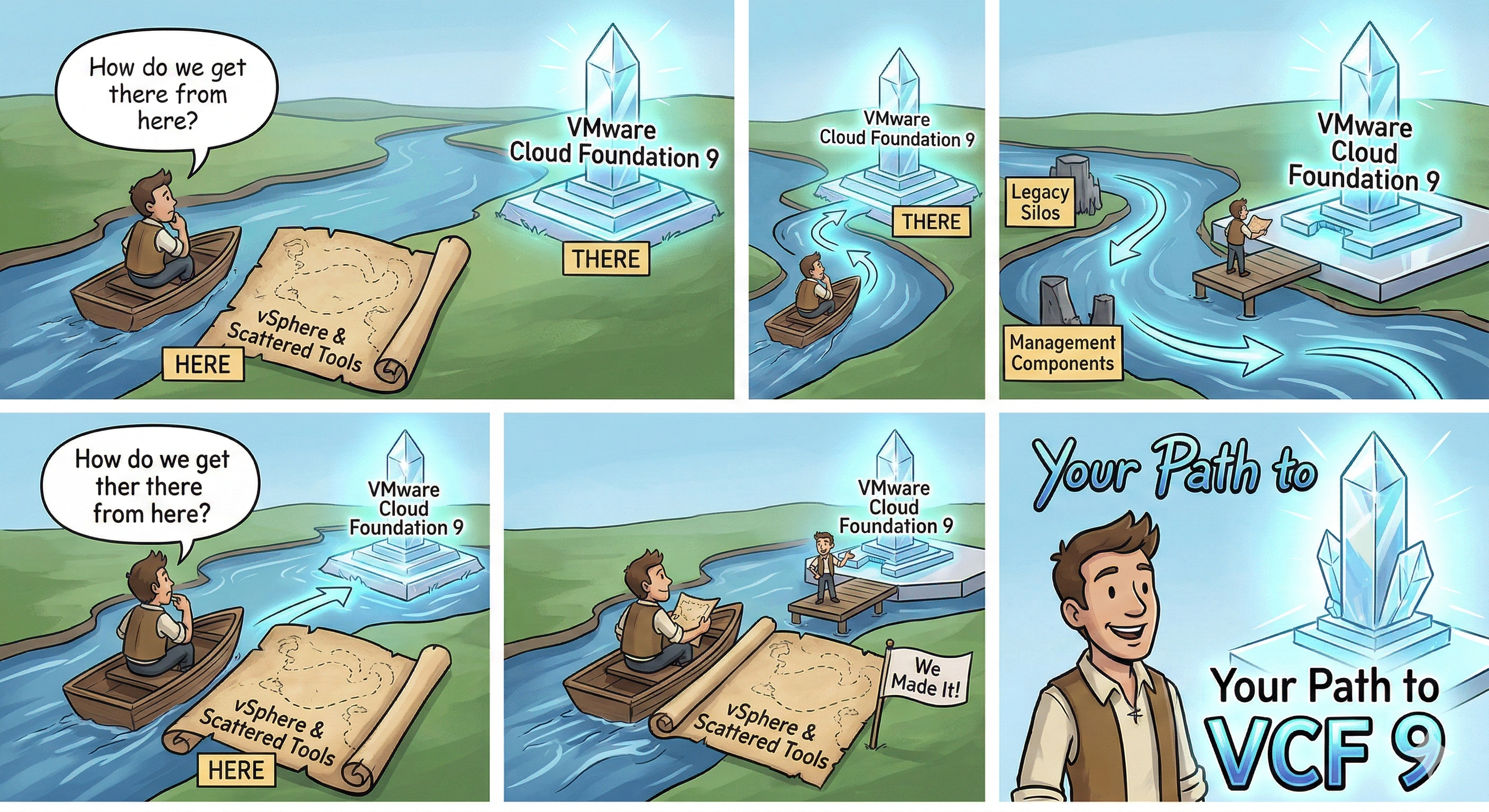
How do we get there from here?
Every organization's infrastructure is unique. Your starting point might be a traditional, rock-solid vSphere environment that you've relied on for years.
Perhaps you are already on the VCF journey running an earlier iteration of VMware Cloud Foundation. Or maybe you have a complex, hybrid environment—vSphere augmented with standalone management components like the Aria Suite (formerly vRealize).
The good news is that the path to a modernized, integrated cloud platform doesn't have to be a guessing game.
In this post, we are going to demystify the journey to VCF 9.
I will break down the exact upgrade paths and migration strategies based on your current deployment architecture.
Whether you are starting from bare-bones compute virtualization or an existing, fully managed SDDC stack, we'll map out your specific route to unlocking the full potential, simplified operations, and centralized management of VCF 9.
Let's dive into your blueprint for the future.
vSphere 8 to VCF 9.0.x
Starting State
| Source | Available |
| vCenter 8.x | ✅ |
| ESX | ✅ |
Step-1: Upgrade to vSphere 9.0.x
Upgrading from vCenter 8.0 update 2/3 to vCenter 9.0 is a two step process.
The first step involves deploying a new vCenter instance alongside the current vCenter appliance.
This new instance will initially be deployed using a temporary IP address.
After the new appliance has been deployed, the configuration from the current vCenter instance will be copied to the new appliance after which a brief outage is taken to “switch” to the upgraded appliance.
Note: the time required to upgrade the vCenter instance to version 9 will vary based on the size of the appliance, the size of the vCenter inventory, and the type of storage being used
login to the vSphere client as administrator@vsphere.local
In the vCenter Details pane verify the vCenter is now running version 9.0.
With the vCenter upgraded to version 9, the next step is to upgrade the ESX hosts to version 9.
To upgrade the hosts to ESX 9.0, we first need to create a new image with the new version
Import the 9.0 software depot in preparation for creating a new image.
- Click ACTIONS
- Click Import Updates
- Click BROWSE
- Click to select VMware-ESXi-9.0.0.0.xxxxx-depot.zip
- Click Open
- Click Software Depot
With the ESX 9.0.0.0 software depot successfully imported. Create a new vLCM image using this software depot.
- Click Image Library
- Click CREATE IMAGE
- Click the Image Name field to enter the vLCM image name esx-9-xxxxx
- Click the Select Version dropdown
- Click to select 9.0.0.0.xxxxx
- Click VALIDATE . Here you see a blue banner reporting that the image is validated.
- Click the scroll bar to scroll down
- Click Save
Assign an ESX 9.0 image to the vSphere cluster.
- Click the vSphere menu icon in the top right (near the words vSphere Client)
- Click Inventory
To assign the new vLCM image to the cluster edit the image.
- Click EDIT
- Click the ESXi Version dropdown
- Click to select 9.0.0.0.xxxxxx
- Click SAVE
Upon assigning the new image a compliance check is automatically performed. Here you see that all 4 hosts are now flagged as being non compliant. To bring the hosts back into compliance remediate the cluster.
- Click the scroll bar to scroll down
- Click REMEDIATE (ALL)
Review the Remediation Impact summary. It shows that all hosts will be upgraded to ESX version 9 as part of the remediation.
As noted, the remediation order is determined at run time and the hosts are updated one at a time.
- Click START REMEDATION . Here you see the upgrade begins with the host esx-xxx.arun.com
- vMotion is used to migrate running VMs off the host after which it is placed into maintenance mode.
- Once in maintenance mode, the new image is installed on the host.
- After the image has been installed the host is rebooted.
- After the host reboots, it is taken out of maintenance mode.
- A compliance check is performed to validate the upgrade was successful.
- With the first host done, vLCM then proceeds to repeat the steps for the remaining hosts in the cluster.
- After a while you see all hosts have been upgraded as indicated by the Image Compliance status showing “All hosts in this cluster are compliant”.
- Click Summary
- Click esx-xxx.arun.com
- The version number shown in the Host Details pane confirms the host is now running ESX version 9.0.
Note: remember to update the vSAN disk version and vSphere Distributed switch versions for your environment
Step-2: Deploy VCF Installer
With vSphere upgrade you are ready to deploy the VCF Installer.
-
Click on the cluster
-
Click Actions
-
Click Deploy OVF Template…
-
Click Local file
-
Click UPLOAD FILES
-
Click to select VCF-SDDC-Manager-Appliance-9.0.0.0.24703748.ova
-
Click Open
- Note: The VCF Installer is a service that runs on the SDDC Manager appliance. As such, to deploy the VCF Installer you deploy an instance of the SDDC Manager OVA. By default, each new deployment of the SDDC Manager will run in “installer mode”.
-
Click NEXT
-
Confirm the virtual machine name and location.
- Notes: The appliance will start in “installer mode” and then get switched to “SDDC manager mode”. Hence you name the appliance based on the end state.
-
Click NEXT
- Once the VCF Installer has been deployed, power it on.
-
Click <
> -
Click the Power On icon
To access the VCF installer use a web browser to connect to the Fully Qualified Domain Name (FQDN).
- Click + to open a new browser tab
- Click in the URL field to enter the FQDN https://vcfinstaller-name.arun.com
Login as the user “admin@local” using the password assigned during the OVA deployment
Step-3: Download VCF 9.0.x binaries
The VCF Installer supports both an online depot and offline depot.
Use the online depot when you have internet access (either direct or through a proxy).
With the online depot you simply provide your Broadcom software token to authenticate, after which you are able to download the binaries.
The offline depot is for sites that do not have direct access to the internet. To use the offline depot set up a local web server and use the VCF Download Tool to authenticate and download the VCF 9.0 binaries to the web server.
Then point the VCF Installer to the web server and use it as an offline depot.
In this example, we will configure an online depot.
- Click CONFIGURE under Connect to the online depot
- Click the Download Token field to enter your software download token
- Click AUTHENTICATE
Note: if you are using a proxy server to access the internet you would toggle the enable proxy server switch. In this example, we are not using a proxy server.
Once successfully authenticated the VCF 9.0 binaries are made available for download.
- Click the scroll bar to scroll down
- Click to select all binaries
- Click DOWNLOAD
The binaries are downloaded.
Step-4: Deploy VCF Fleet
With the binaries downloaded you are ready to converge your existing vSphere environment into a new VCF Fleet.
To Deploy a new VCF Fleet you use the deployment wizard.
- Click DEPLOYMENT WIZARD
- Click VMware Cloud Foundation
Begin by indicating if you will deploy a new VCF Fleet or add a new VCF Instance to an existing VCF Fleet.
When choosing to “Deploy a new VCF fleet” a new instance of VCF Operations and VCF Automation will be deployed in conjunction with deploying a new VCF management domain.
If you already have a VCF Fleet deployed, with a corresponding instance of VCF Operations and VCF Automation, use the “Deploy a VCF instance in an existing VCF fleet” option to add a new VCF management domain and configure it with the existing VCF Operations and VCF Automation.
When deploying a new VCF fleet you can choose whether to deploy a new instance of vCenter and VCF Operations or if you want to converge an existing instance that is running in your environment.
When converging existing components, the VCF Installer will configure the existing components as part of the VCF fleet deployment. Otherwise, new instances will be deployed and configured.
In this scenario, because we are upgrading from existing infrastructure where we just have vCenter and no VMware Aria products , you check the box to converge the VMware vCenter
- Click the check box next to VMware vCenter
- Click NEXT
Next, provide details for the new VCF instance that will be deployed with the VCF Fleet.
This includes providing a name for the VCF instance, a name for the management domain, and specifying the deployment model.
Choose the deployment model , Simple or High Availability.
With the simple deployment model the NSX manager, VCF Operations, and VCF Automation will each be configured single-node instances.
If you chose the High Availability model, then these components would be deployed as three-node instances thus providing a higher degree of availability as well as additional capacity for improved scalability. Click NEXT
Because we don't have VCF Operations , a new VCF Operations is deployed. One Analytics node and a VCF Operations Collector (Cloud Proxy) along with VCF Operations fleet management appliance.
Folowing inputs are needed here
- VCF Operations load balancer FQDN
- VCF Operations Master (Analytics) FQDN
- VCF Operations Collector FQDN
- VCF Operations fleet management FQDN
- Password (would be asked if autogenerate option is not selected before)
Provide the information needed to deploy a new VCF Automation instance with the new VCF fleet.
Folowing inputs are needed here
- VCF Automation FQDN
- Node Name Prefix
- Internal Cluster CIDR
- Password (would be asked if autogenerate option is not selected before)
- Node IP-1 and IP-2
Note: If you have an existing VMware Aria Automation instance that you want to use with the new VCF Fleet you would click the check box next to “I want to connect a VCF Automation Instance later”.
In this case you would proceed with the VCF Fleet deployment and after the deployment completes use the Fleet Management feature in VCF Operations to import the existing VMware Aria Automation instance and upgrade it to VCF Automation. Click NEXT.
You then provide the FQDN along with the SSO login credentials for the vCenter instance that will be converged to the VCF management domain. Click NEXT
Here again you check the boxes to accept the vCenter certificate and SSH thumbprint. Click CONFIRM
Next, you provide the details for the NSX instance that will be deployed in the VCF management domain.
Here you specify the appliance size along with the cluster FQDN and appliance FQDN (remember, since you chose the simple deployment model only one appliance will be deployed).
NSX virtual networking uses overlay networks. Here you can toggle the switch to indicate if you want to optionally configure the NSX overlay networks on the management network as part of the NSX deployment or skip the overlay network setup during the deployment and enable it later.
In larger environments it is typically recommended to reconfigure the overlay networking onto separate networks/VLANs. The NSX overlay networking can easily be (re)configured after the deployment using the NSX manager.
Provide the passwords to use for the admin, root, and audit accounts. Click NEXT.
As previously mentioned, the VCF Installer is a service that runs on the SDDC Manager appliance. You will recall when we deployed the VCF Installer we downloaded and deployed the SDDC Manager OVA template.
There would be a prompt for the FQDN and administrator password that will be used to convert the appliance to the SDDC Manager. Click NEXT
With the required information gathered, you are presented with a summary of the VCF Deployment
Click the scroll bar to scroll down and review the VCF deployment information. Click NEXT
The confirmation is then validated. Depending on your configuration the validation will typically take between 5 to 10 minutes to complete.
Validations takes place. Read and acknowledge the warnings.
One of the warning can be that it has detected vSphere Standard Switches (VSS) configured on the ESX hosts. This warning can be ignored.
With the successful validation and having acknowledged the warnings we are ready to proceed with the VCF Fleet deployment. Click DEPLOY
The Deployment now starts and completes.
As stated, in this scenario, we had an existing vCenter which was converged into VCF management domain.
NSX was deployed and configured, the VCF Installer appliance was reconfigured to become the SDDC Manager, the new VCF management domain was added to the VCF Fleet Management and VCF Operations and a new instance of VCF Automation was deployed.
Note: depending on your topology and whether you are deploying new components or converging existing components a VCF Fleet deployment can take between 90 minutes and 4 hours. Here you will pick up after the deployment has completed.
The VCF installer provides a detailed audit trail of the tasks that were performed as part of the fleet deployment.
Here you see the detailed list of tasks that were performed. You can use this view to monitor deployment while it is in progress. If any problems are encountered, you use this view to troubleshoot and diagnose the issue. If the issue is able to be resolved, you can resume the workflow where it will pick up with the most recent tasks.
With the VCF Fleet deployment complete, you will now login to VCF Operations to view details about the private cloud.
- Click OPEN VCF OPERATIONS UI
- Click LOG IN to login to VCF Operations as the admin user
In the VCF Operations home page. Observe the VCF management domain has automatically been registered as an account with VCF Operations.
Also, note the new Fleet Management section of the VCF Operations UI.
Navigate to the Inventory to view details about the management domain.
- Click Fleet Management
- Click Inventory
We see a summary of the VCF management domain. To see additional details, click the vCenter instance.
Switch to the vSphere Client to observe the changes that have been made to the vCenter inventory as part of the convergence to a VCF management domain.
- Click the Login browser tab
- Click LOG IN to login as the administrator@vsphere.local user
Here we see the vCenter inventory. Note that the upgrade to VCF 9.0 was largely non-disruptive to the running workloads. One notable change has been the creation of a new resource pool in the inventory
Once you expand the resource pool , you see that several of the infrastructure components that make up the VCF management domain have been moved to this resource pool. These include the vCenter Server, the SDDC-Manager, the VCF Operations Collector, and the VCF automation.
Recap
- You upgraded from vSphere 8.0 Update 2 to vSphere 9.0. This involved upgrading both the vCenter and ESX hosts.
- You deployed the VCF Installer.
- You configured the online depot and downloaded the VCF 9.0 binaries to the VCF Installer.
- You used the VCF Installer to converge the vSphere
- You deployed VCF Operations , VCF Operations Collector (Cloud Proxy) , VCF Operations fleet management appliance
- You deployed VCF Automation
Step-5: License your VCF
Following the upgrade, the next step is to use VCF Operations to register the VCF Operations with the Business Services Console in order to download a new license file and license the new VCF instanc
vSphere 8 to VCF 9.0.x with VMware Aria Operations (No VMware Aria Suite Lifecycle)
| Source | Available |
| vCenter 8.x | ✅ |
| ESX | ✅ |
| VMware Aria Operations 8.x | ✅ |
vSphere 8 to VCF 9.0.x with VMware Aria Operations and VMware Aria Operations for Logs (No VMware Aria Suite Lifecycle)
| Source | Available |
| vCenter 8.x | ✅ |
| ESX | ✅ |
| VMware Aria Operations 8.x | ✅ |
| VMware Aria Operations for Logs 8.x | ✅ |
Step-1: Upgrade to VCF Operations 9.0.x
-
Obtain Software Upgrade PAK file
-
Snapshot VMware Aria Operations 8.x cluster
- It is mandatory to create a snapshot of each node in a cluster before you update a VMware Aria Operations cluster. Once the update is complete, you must delete the snapshot to avoid performance degradation.
- For more information about snapshots, see the vSphere Virtual Machine Administration documentation.
- Log into the VMware Aria Operations Administrator interface at https://
/admin. - Click Take Offline under the cluster status.
- When all nodes are offline, open the vSphere client.
- Right-click a VMware Aria Operations virtual machine.
- Click Snapshot and then click Take Snapshot.
- Name the snapshot. Use a meaningful name such as "Pre-Update."
- Uncheck the Snapshot the Virtual Machine Memory check box.
- Uncheck the Ensure Quiesce Guest File System (Needs VMware Tools installed) check box.
- Click OK.
- Repeat these steps for each node in the cluster.
-
Log into the primary node VMware Aria Operations administrator interface of your cluster at https://primary-node-FQDN-or-IP-address/admin .
-
Click Software Update in the left pane.
-
Click Install a Software Update in the main pane.
-
Follow the steps in the wizard to locate and install your PAK file.
- This updates the OS on the virtual appliance and restarts each virtual machine.
-
Read the End User License Agreement and Update Information, and click Next.
-
Click Install to complete the installation of the software update.
-
Log back into the primary node administrator interface.
- The main Cluster Status page appears and the cluster goes online automatically. The status page also displays the Bring Online button, but do not click it.
-
Clear the browser caches and if the browser page does not refresh automatically, refresh the page.The cluster status changes to Going Online. When the cluster status changes to Online, the upgrade is complete.
-
Click Software Update to check that the update is done.
- A message indicating that the update completed successfully appears in the main pane.
-
When you update VMware Aria Operations to a latest version, all nodes get upgraded by default.
-
If you are using cloud proxies, the cloud proxy upgrades start after the VMware Aria Operations upgrade is completed successfully.
Step-2: Upgrade to vSphere 9.0.x
Upgrading from vCenter 8.0 update 2/3 to vCenter 9.0 is a two step process.
The first step involves deploying a new vCenter instance alongside the current vCenter appliance.
This new instance will initially be deployed using a temporary IP address.
After the new appliance has been deployed, the configuration from the current vCenter instance will be copied to the new appliance after which a brief outage is taken to “switch” to the upgraded appliance.
Note: the time required to upgrade the vCenter instance to version 9 will vary based on the size of the appliance, the size of the vCenter inventory, and the type of storage being used
login to the vSphere client as administrator@vsphere.local
In the vCenter Details pane verify the vCenter is now running version 9.0.
With the vCenter upgraded to version 9, the next step is to upgrade the ESX hosts to version 9.
To upgrade the hosts to ESX 9.0, we first need to create a new image with the new version
Import the 9.0 software depot in preparation for creating a new image.
- Click ACTIONS
- Click Import Updates
- Click BROWSE
- Click to select VMware-ESXi-9.0.0.0.xxxxx-depot.zip
- Click Open
- Click Software Depot
With the ESX 9.0.0.0 software depot successfully imported. Create a new vLCM image using this software depot.
- Click Image Library
- Click CREATE IMAGE
- Click the Image Name field to enter the vLCM image name esx-9-xxxxx
- Click the Select Version dropdown
- Click to select 9.0.0.0.xxxxx
- Click VALIDATE . Here you see a blue banner reporting that the image is validated.
- Click the scroll bar to scroll down
- Click Save
Assign an ESX 9.0 image to the vSphere cluster.
- Click the vSphere menu icon in the top right (near the words vSphere Client)
- Click Inventory
To assign the new vLCM image to the cluster edit the image.
- Click EDIT
- Click the ESXi Version dropdown
- Click to select 9.0.0.0.xxxxxx
- Click SAVE
Upon assigning the new image a compliance check is automatically performed. Here you see that all 4 hosts are now flagged as being non compliant. To bring the hosts back into compliance remediate the cluster.
- Click the scroll bar to scroll down
- Click REMEDIATE (ALL)
Review the Remediation Impact summary. It shows that all hosts will be upgraded to ESX version 9 as part of the remediation.
As noted, the remediation order is determined at run time and the hosts are updated one at a time.
- Click START REMEDATION . Here you see the upgrade begins with the host esx-xxx.arun.com
- vMotion is used to migrate running VMs off the host after which it is placed into maintenance mode.
- Once in maintenance mode, the new image is installed on the host.
- After the image has been installed the host is rebooted.
- After the host reboots, it is taken out of maintenance mode.
- A compliance check is performed to validate the upgrade was successful.
- With the first host done, vLCM then proceeds to repeat the steps for the remaining hosts in the cluster.
- After a while you see all hosts have been upgraded as indicated by the Image Compliance status showing “All hosts in this cluster are compliant”.
- Click Summary
- Click esx-xxx.arun.com
- The version number shown in the Host Details pane confirms the host is now running ESX version 9.0.
Note: remember to update the vSAN disk version and vSphere Distributed switch versions for your environment
Step-3: Deploy VCF Installer
With vSphere upgrade you are ready to deploy the VCF Installer.
-
Click on the cluster
-
Click Actions
-
Click Deploy OVF Template…
-
Click Local file
-
Click UPLOAD FILES
-
Click to select VCF-SDDC-Manager-Appliance-9.0.0.0.24703748.ova
-
Click Open
- Note: The VCF Installer is a service that runs on the SDDC Manager appliance. As such, to deploy the VCF Installer you deploy an instance of the SDDC Manager OVA. By default, each new deployment of the SDDC Manager will run in “installer mode”.
-
Click NEXT
-
Confirm the virtual machine name and location.
- Notes: The appliance will start in “installer mode” and then get switched to “SDDC manager mode”. Hence you name the appliance based on the end state.
-
Click NEXT
- Once the VCF Installer has been deployed, power it on.
-
Click <
> -
Click the Power On icon
To access the VCF installer use a web browser to connect to the Fully Qualified Domain Name (FQDN).
- Click + to open a new browser tab
- Click in the URL field to enter the FQDN https://vcfinstaller-name.arun.com
Login as the user “admin@local” using the password assigned during the OVA deployment
Step-4: Download VCF 9.0.x binaries
The VCF Installer supports both an online depot and offline depot.
Use the online depot when you have internet access (either direct or through a proxy).
With the online depot you simply provide your Broadcom software token to authenticate, after which you are able to download the binaries.
The offline depot is for sites that do not have direct access to the internet. To use the offline depot set up a local web server and use the VCF Download Tool to authenticate and download the VCF 9.0 binaries to the web server.
Then point the VCF Installer to the web server and use it as an offline depot.
In this example, we will configure an online depot.
- Click CONFIGURE under Connect to the online depot
- Click the Download Token field to enter your software download token
- Click AUTHENTICATE
Note: if you are using a proxy server to access the internet you would toggle the enable proxy server switch. In this example, we are not using a proxy server.
Once successfully authenticated the VCF 9.0 binaries are made available for download.
- Click the scroll bar to scroll down
- Click to select all binaries
- Click DOWNLOAD
The binaries are downloaded.
Step-5: Deploy VCF Fleet
With the binaries downloaded you are ready to converge your existing vSphere environment into a new VCF Fleet.
To Deploy a new VCF Fleet you use the deployment wizard.
- Click DEPLOYMENT WIZARD
- Click VMware Cloud Foundation
Begin by indicating if you will deploy a new VCF Fleet or add a new VCF Instance to an existing VCF Fleet.
When choosing to “Deploy a new VCF fleet” a new instance of VCF Operations and VCF Automation will be deployed in conjunction with deploying a new VCF management domain.
If you already have a VCF Fleet deployed, with a corresponding instance of VCF Operations and VCF Automation, use the “Deploy a VCF instance in an existing VCF fleet” option to add a new VCF management domain and configure it with the existing VCF Operations and VCF Automation.
When deploying a new VCF fleet you can choose whether to deploy a new instance of vCenter and VCF Operations or if you want to converge an existing instance that is running in your environment.
When converging existing components, the VCF Installer will configure the existing components as part of the VCF fleet deployment. Otherwise, new instances will be deployed and configured.
In this scenario, because you are upgrading from existing infrastructure you check the box to converge both the VCF Operations and the VMware vCenter
- Click the check box next to VCF Operations
- Click the check box next to VMware vCenter
- Click NEXT
Next, provide details for the new VCF instance that will be deployed with the VCF Fleet.
This includes providing a name for the instance, a name for the management domain, and specifying the deployment model.
With the simple deployment model the NSX manager, VCF Operations, and VCF Automation will each be configured single-node instances.
If you chose the High Availability model, then these components would be deployed as three-node instances thus providing a higher degree of availability as well as additional capacity for improved scalability. Click NEXT.
Because you are converging an existing VCF Operations instance you next provide the FQDN of the existing VCF Operations instance along with the admin password. The installer uses this information to connect to the VCF Operations instance. Click CONNECT.
Click the checkboxes to confirm the certificate and SSH thumbprint. Click CONFIRM
You see the green banner notifying you that the VCF Installer was able to successfully detect the VCF Operations instance.
As part of the VCF Operations connectivity validation the installer detects if the existing fleet management appliance that is registered with VCF Operations. The FQDN has been auto populated in the UI. You are now asked to provide the corresponding administrator password.
Also, with VCF 9.0 you will need to deploy an instance of the VCF Operations Collector appliance. At this stage you need to provide VCF Operations Collector FQDN along with the administrator password to assign to the collector. Click NEXT
Confirm the thumbprint for the VCF Fleet Management appliance.
- VCF Operations fleet management FQDN
- Password (would be asked if autogenerate option is not selected before)
Provide the information needed to deploy a new VCF Automation instance with the new VCF fleet.
Folowing inputs are needed here
- VCF Automation FQDN
- Node Name Prefix
- Internal Cluster CIDR
- Password (would be asked if autogenerate option is not selected before)
- Node IP-1 and IP-2 ( Additional IP's are needed if we select HA deployment model)
Note: If you have an existing VMware Aria Automation instance that you want to use with the new VCF Fleet you would click the check box next to “I want to connect a VCF Automation Instance later”.
In this case you would proceed with the VCF Fleet deployment and after the deployment completes use the Fleet Management feature in VCF Operations to import the existing VMware Aria Automation instance and upgrade it to VCF Automation. Click NEXT.
You then provide the FQDN along with the SSO login credentials for the vCenter instance that will be converged to the VCF management domain. Click NEXT
Here again you check the boxes to accept the vCenter certificate and SSH thumbprint. Click CONFIRM
Next, you provide the details for the NSX instance that will be deployed in the VCF management domain.
Here you specify the appliance size along with the cluster FQDN and appliance FQDN (remember, since you chose the simple deployment model only one appliance will be deployed).
NSX virtual networking uses overlay networks. Here you can toggle the switch to indicate if you want to optionally configure the NSX overlay networks on the management network as part of the NSX deployment or skip the overlay network setup during the deployment and enable it later.
In larger environments it is typically recommended to reconfigure the overlay networking onto separate networks/VLANs. The NSX overlay networking can easily be (re)configured after the deployment using the NSX manager.
Provide the passwords to use for the admin, root, and audit accounts. Click NEXT.
As previously mentioned, the VCF Installer is a service that runs on the SDDC Manager appliance. You will recall when we deployed the VCF Installer we downloaded and deployed the SDDC Manager OVA template.
There would be a prompt for the FQDN and administrator password that will be used to convert the appliance to the SDDC Manager. Click NEXT
With the required information gathered, you are presented with a summary of the VCF Deployment
Click the scroll bar to scroll down and review the VCF deployment information. Click NEXT
The confirmation is then validated. Depending on your configuration the validation will typically take between 5 to 10 minutes to complete.
Validations takes place. Read and acknowledge the warnings.
One of the warning can be that it has detected vSphere Standard Switches (VSS) configured on the ESX hosts. This warning can be ignored.
With the successful validation and having acknowledged the warnings we are ready to proceed with the VCF Fleet deployment. Click DEPLOY
The Deployment now starts and completes.
As stated, in this scenario, we had an existing vCenter which was converged into VCF management domain.
NSX was deployed and configured, the VCF Installer appliance was reconfigured to become the SDDC Manager, the new VCF management domain was added to the VCF Fleet Management and VCF Operations and a new instance of VCF Automation was deployed.
Note: depending on your topology and whether you are deploying new components or converging existing components a VCF Fleet deployment can take between 90 minutes and 4 hours. Here you will pick up after the deployment has completed.
The VCF installer provides a detailed audit trail of the tasks that were performed as part of the fleet deployment.
Here you see the detailed list of tasks that were performed. You can use this view to monitor deployment while it is in progress. If any problems are encountered, you use this view to troubleshoot and diagnose the issue. If the issue is able to be resolved, you can resume the workflow where it will pick up with the most recent tasks.
With the VCF Fleet deployment complete, you will now login to VCF Operations to view details about the private cloud.
- Click OPEN VCF OPERATIONS UI
- Click LOG IN to login to VCF Operations as the admin user
In the VCF Operations home page. Observe the VCF management domain has automatically been registered as an account with VCF Operations.
Also, note the new Fleet Management section of the VCF Operations UI.
Navigate to the Inventory to view details about the management domain.
- Click Fleet Management
- Click Inventory
We see a summary of the VCF management domain. To see additional details, click the vCenter instance.
Switch to the vSphere Client to observe the changes that have been made to the vCenter inventory as part of the convergence to a VCF management domain.
- Click the Login browser tab
- Click LOG IN to login as the administrator@vsphere.local user
Here we see the vCenter inventory. Note that the upgrade to VCF 9.0 was largely non-disruptive to the running workloads. One notable change has been the creation of a new resource pool in the inventory
Once you expand the resource pool , you see that several of the infrastructure components that make up the VCF management domain have been moved to this resource pool. These include the vCenter Server, the SDDC-Manager, the VCF Operations Collector, and the VCF automation.
Recap
- You upgraded from vSphere 8.0 Update 2 to vSphere 9.0. This involved upgrading both the vCenter and ESX hosts.
- You deployed the VCF Installer.
- You configured the online depot and downloaded the VCF 9.0 binaries to the VCF Installer.
- You used the VCF Installer to converge the vSphere
- You deployed VCF Operations , VCF Operations Collector (Cloud Proxy) , VCF Operations fleet management appliance
- You deployed VCF Automation
Step-6: License your VCF
Step-7: Deploy VCF Operations for logs
-
Download Required Binaries
- Verify that the Depot Configuration is complete (Offline Depot).
- Navigate to the Binary Management pane and download the required installation binary.
- The necessary binary is named "operations-logs."
- Check the box next to the binary name and click "DOWNLOAD."
- A download request will be triggered. Once the process is complete, proceed to the next step to install the component
-
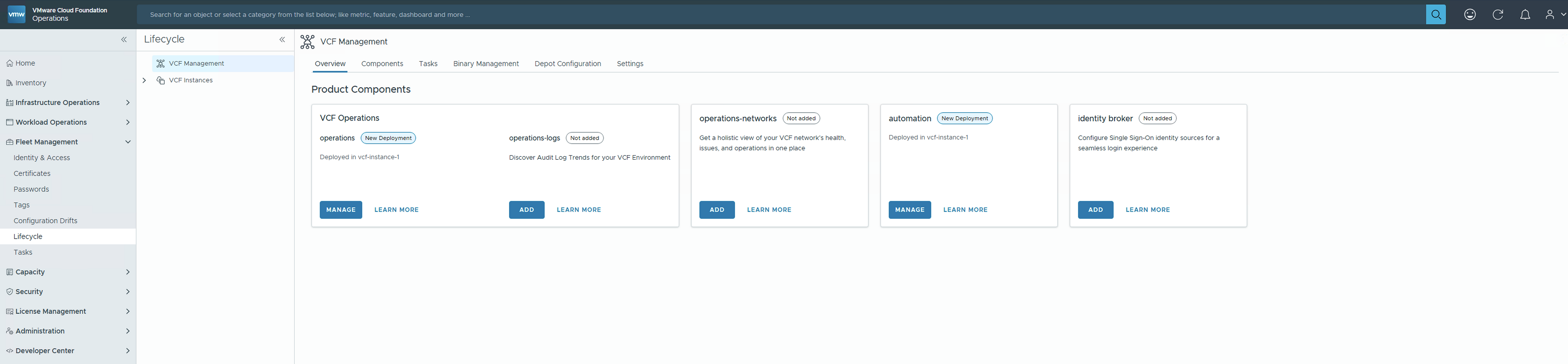
From the Overview pane, we can now click on “ADD” under “operations-logs” to initiate the installation process.
-
The Deployment pane opens, prompting users to make a selection:
-
Installation Type
- New Install – Choose this option to perform a fresh installation of operations-logs
- Import – Select this option to import an existing operations-logs 9.0 when deployed previously. This option is not applicable at the moment since we are currently performing a new installation.
-
Version which must be 9.0.0 .0
-
Deployment Type which can be standard or a cluster
-
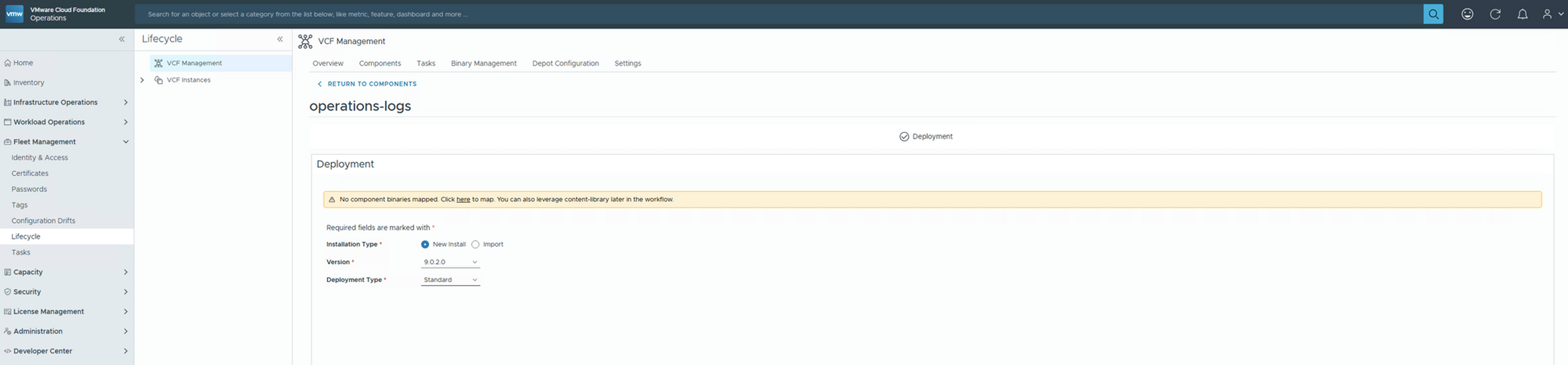
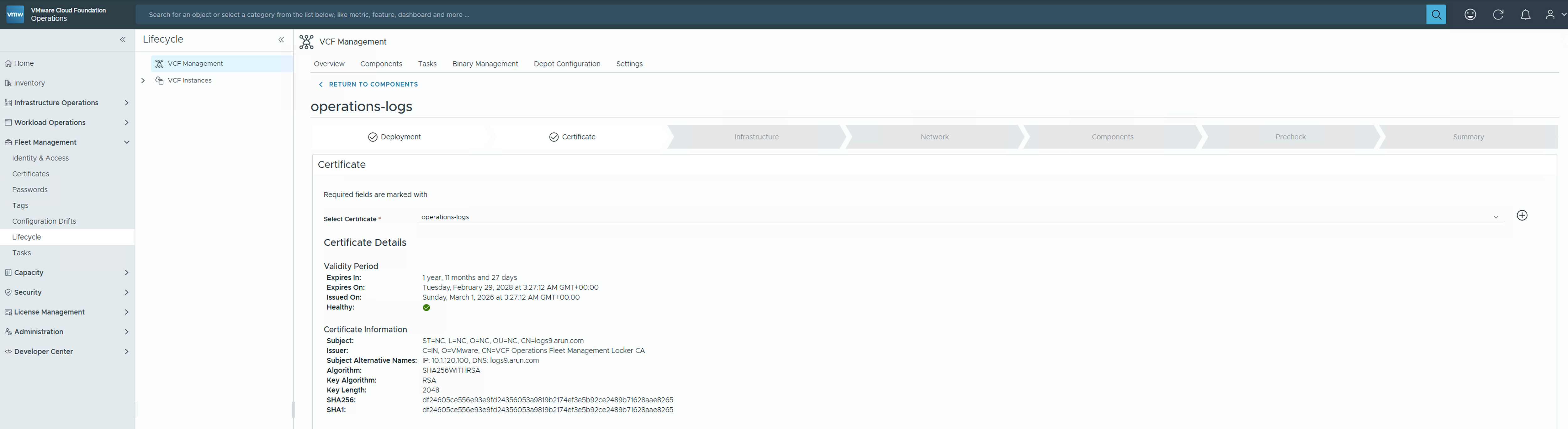
- Click 'Next' to proceed with certificate selection. Make sure the FQDN of the LOGS cluster nodes is included in the Subject Alternative Names section without fail
-
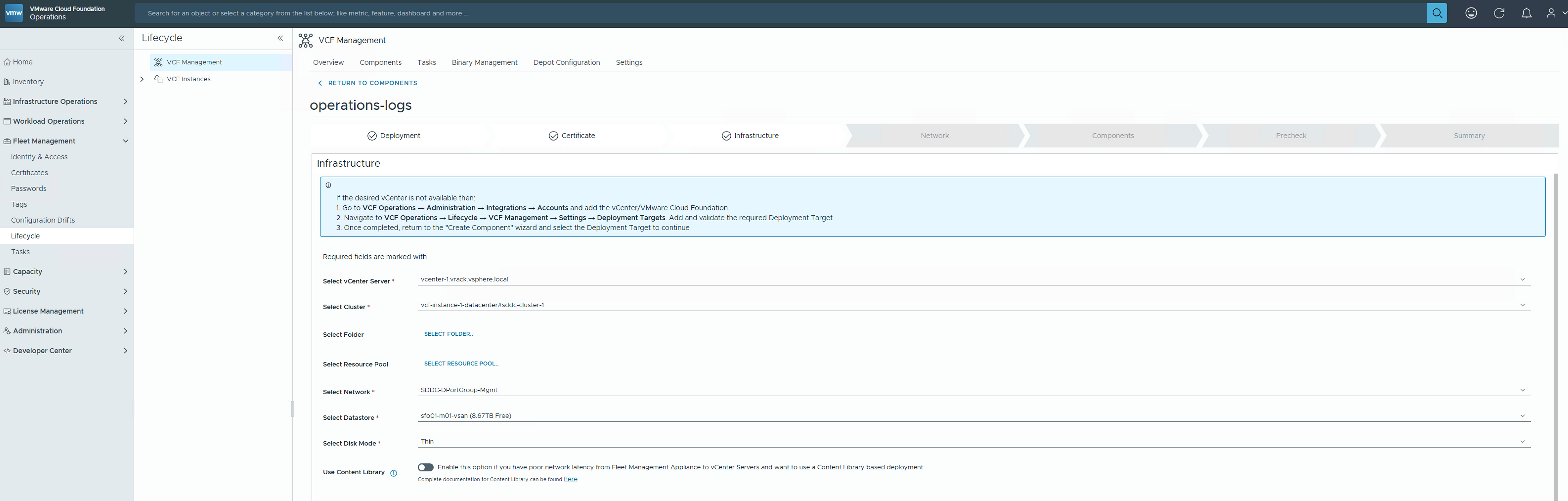
Click on next to enter “Infrastructure” pane
-
Select vCenter Server
- Only lists management domains for deployment
-
Select Cluster
-
Select Folder
-
Select Resource Pool
-
Select Network
-
Select Datastore
-
Select Disk Mode
-
Use Content Library (Optional)
-
-
Click on next to enter “Network” pane
-
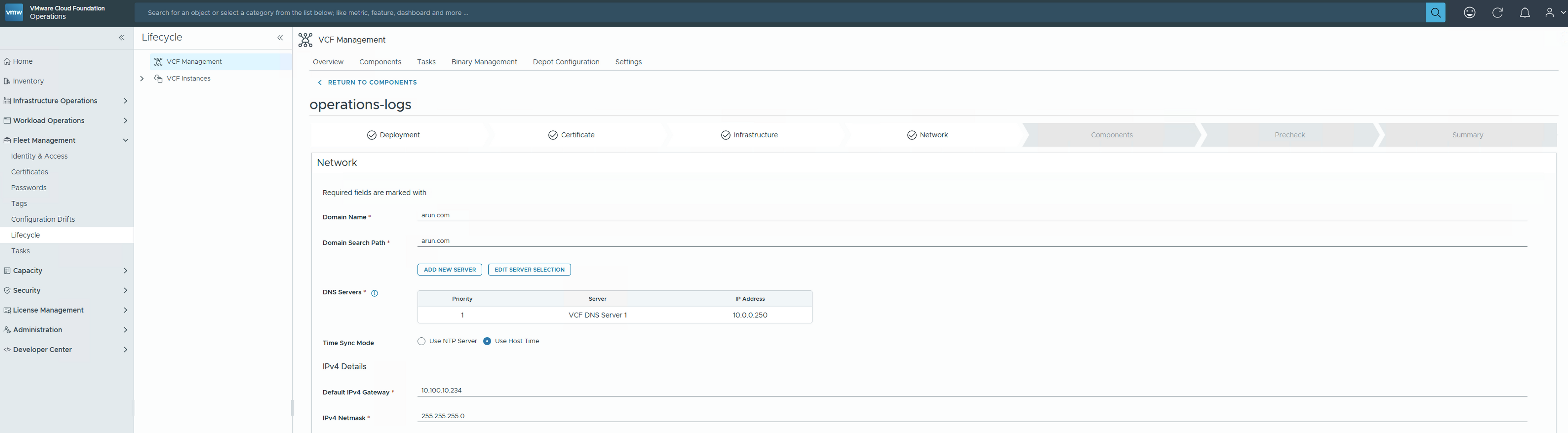
Enter Domain Name
-
Enter Domain Search Path
-
Select DNS Servers , if one does not exist, then add and select
-
Select Time Sync Mode
-
Enter IPv4 details
- Netmask
- Default Gateway
-
-
Click on next to enter “Components” pane
-
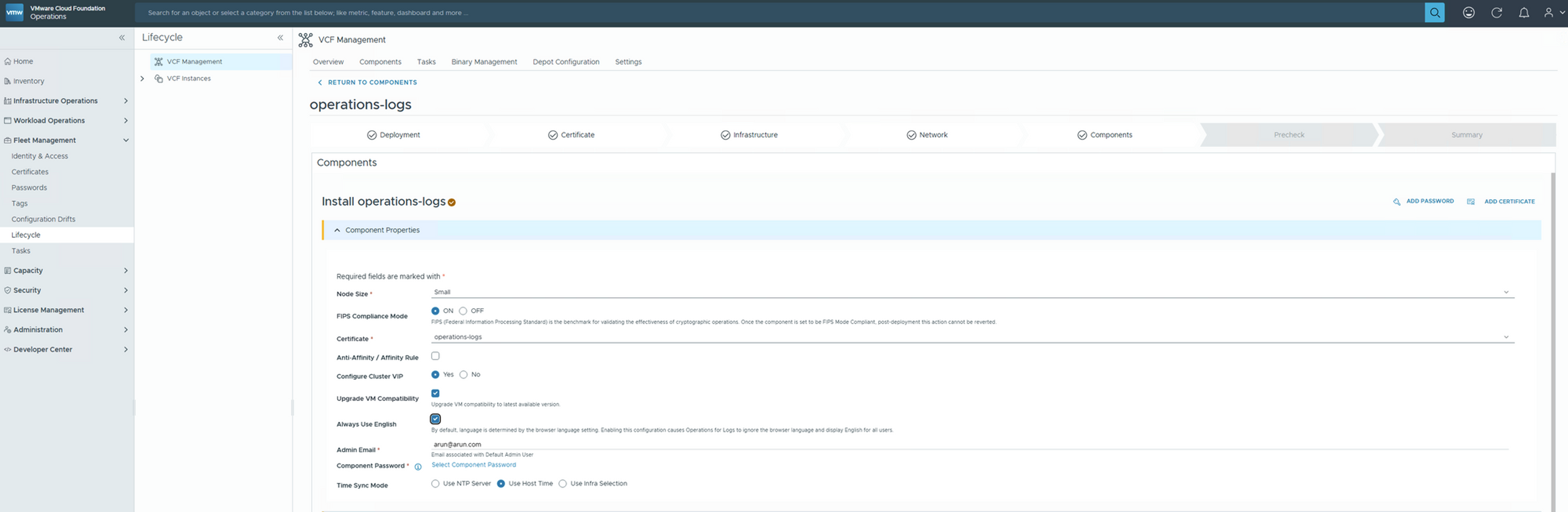
Enter Component Properties
-
Node Size
- Select node size Small, Medium or Large based on the requirement. Medium is recommended
-
FIPS Compliance
- Turn it ON or OFF, default option is OFF for VCF 9.0
-
Certificate
-
Pre-selected from the previous step
-
Set Affinity & Anti-Affinity rule if needed
-
Configure Cluster VIP
- This is the load balancer (internal) IP for operations-logs
- If Cluster VIP is set to NO, then the CLUSTER VIP section will not be presented
-
Upgrade VM Compatibility
-
Always Use English
-
Admin Email
-
Time Sync Mode which is pre-selected
-
Component Password which will be used for “root” and “admin” local accounts.
-
-
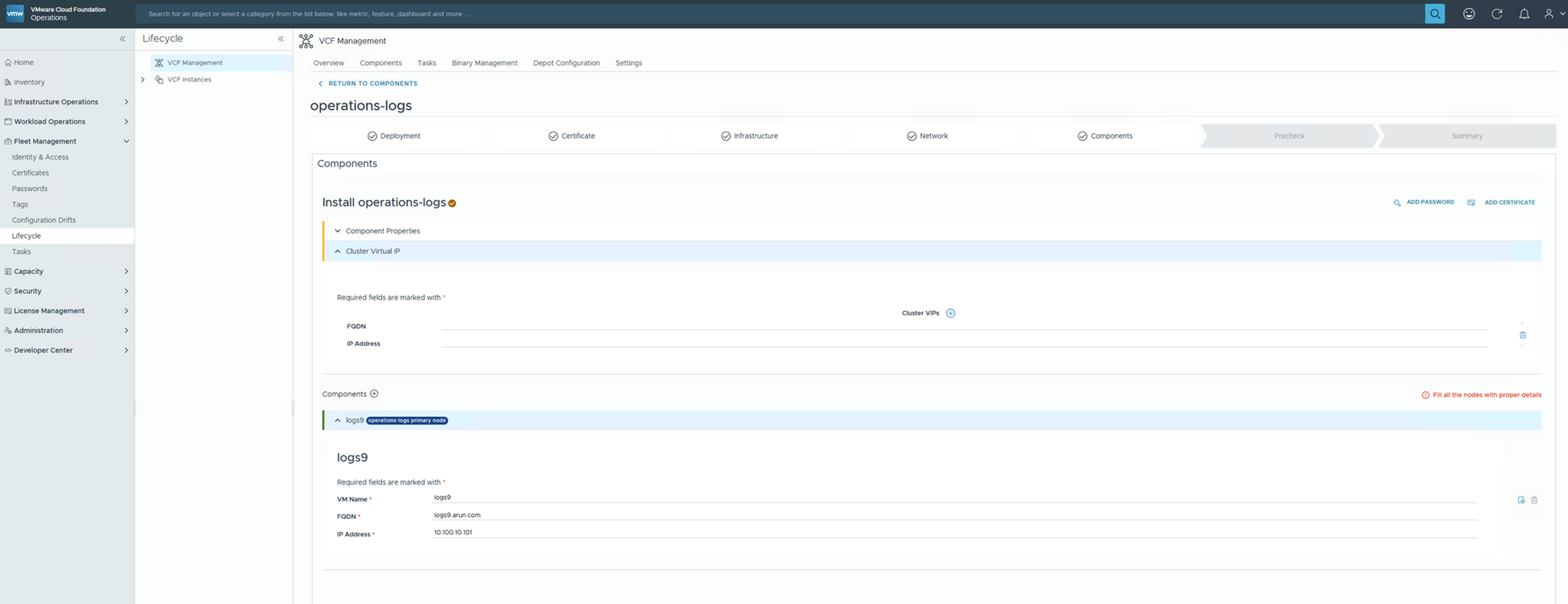
If Cluster VIP is present then enter
- FQDN of the LOAD BALANCER
- IP Address pointing to the FQDN of the LOAD BALANCER
-
Enter Component/Node properties
- VM Name
- FQDN
- IP Address
-
-
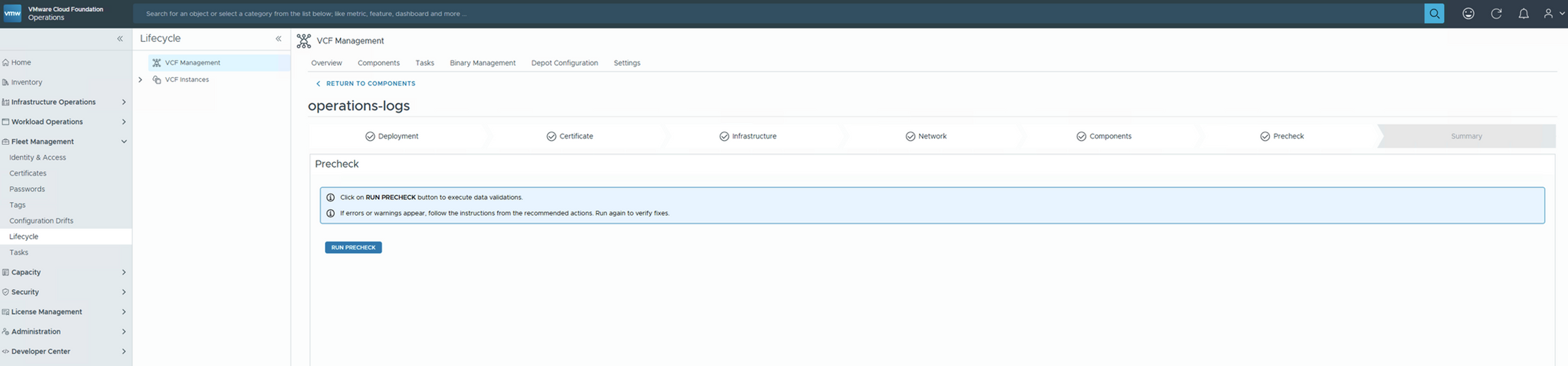
Click on next to enter “Prechecks” pane
- Run Prechecks and ensure everything is successfully completed
- If there are any exceptions , fix them and re-run prechecks, only then click on “NEXT” to proceed to “SUMMARY” pane
-
Review and Submit deployment request
-
Wait for the deployment request to complete and then leverage operations-logs
-
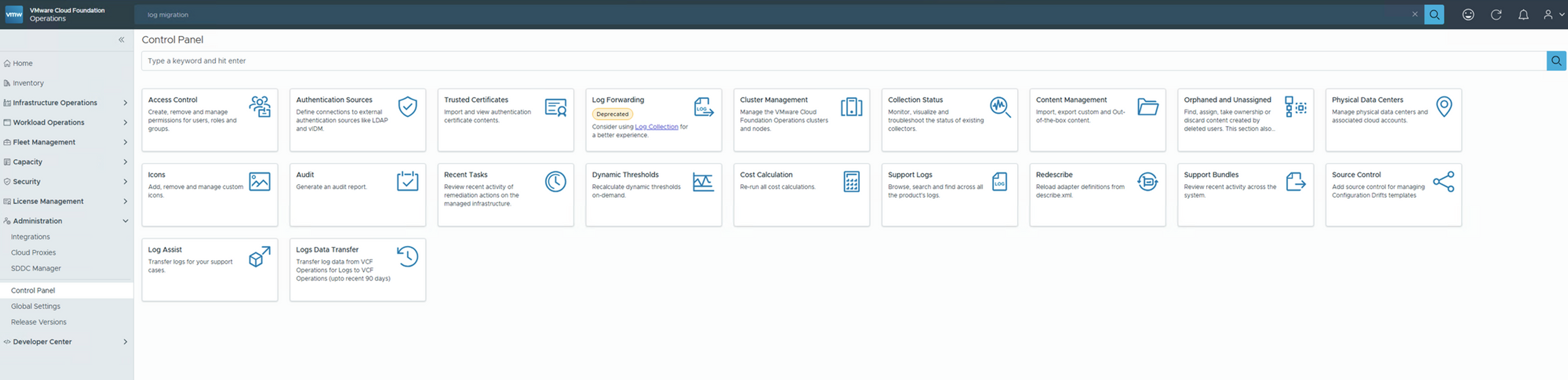
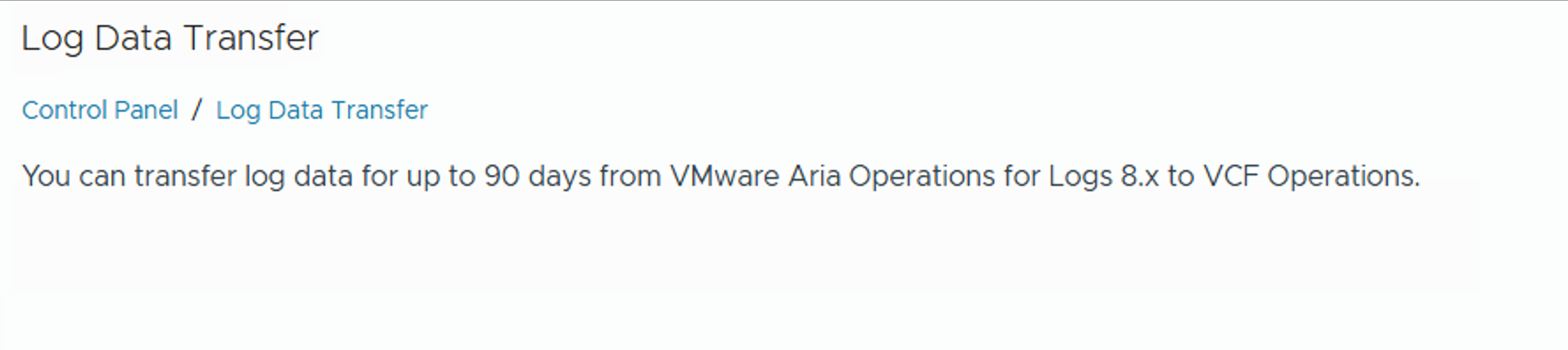
Now , that operations-logs is deployed, go ahead and migrate the logs data from the old VMware Aria Operations for Logs 8.x cluster to the new VCF Operations for logs 9.x
- You can do this under VCF Operations - Administration - Control Panel - Log Data Transfer
- For more information , look at official documentation : https://techdocs.broadcom.com/us/en/vmware-cis/vcf/vcf-9-0-and-later/9-0/infrastructure-operations/log-analysis/field-management.html
vSphere 8 to VCF 9.0.x with VMware Aria Operations VMware Aria Automation ,VMware Aria Operations for Logs & VMware Aria Operations for Networks
| Source | Available |
| vCenter 8.x | ✅ |
| ESX | ✅ |
| VMware Aria Operations 8.x | ✅ |
| VMware Aria Operations for Logs 8.x | ✅ |
| VMware Aria Automation 8.x | ✅ |
| VMware Aria Suite Lifecycle | ✅ (has no upgrade path to VCF 9.x) |
| VMware Identity Manager | ✅ (has no upgrade path to VCF 9.x) |
| VMware Aria Operations for Networks | ✅ |
Step-1: Upgrade to VCF Operations 9.0.x
-
Obtain Software Upgrade PAK file
-
Snapshot VMware Aria Operations 8.x cluster
- It is mandatory to create a snapshot of each node in a cluster before you update a VMware Aria Operations cluster. Once the update is complete, you must delete the snapshot to avoid performance degradation.
- For more information about snapshots, see the vSphere Virtual Machine Administration documentation.
- Log into the VMware Aria Operations Administrator interface at https://
/admin. - Click Take Offline under the cluster status.
- When all nodes are offline, open the vSphere client.
- Right-click a VMware Aria Operations virtual machine.
- Click Snapshot and then click Take Snapshot.
- Name the snapshot. Use a meaningful name such as "Pre-Update."
- Uncheck the Snapshot the Virtual Machine Memory check box.
- Uncheck the Ensure Quiesce Guest File System (Needs VMware Tools installed) check box.
- Click OK.
- Repeat these steps for each node in the cluster.
-
Log into the primary node VMware Aria Operations administrator interface of your cluster at https://primary-node-FQDN-or-IP-address/admin .
-
Click Software Update in the left pane.
-
Click Install a Software Update in the main pane.
-
Follow the steps in the wizard to locate and install your PAK file.
- This updates the OS on the virtual appliance and restarts each virtual machine.
-
Read the End User License Agreement and Update Information, and click Next.
-
Click Install to complete the installation of the software update.
-
Log back into the primary node administrator interface.
- The main Cluster Status page appears and the cluster goes online automatically. The status page also displays the Bring Online button, but do not click it.
-
Clear the browser caches and if the browser page does not refresh automatically, refresh the page.The cluster status changes to Going Online. When the cluster status changes to Online, the upgrade is complete.
-
Click Software Update to check that the update is done.
- A message indicating that the update completed successfully appears in the main pane.
-
When you update VMware Aria Operations to a latest version, all nodes get upgraded by default.
-
If you are using cloud proxies, the cloud proxy upgrades start after the VMware Aria Operations upgrade is completed successfully.
Step-2: Upgrade to vSphere 9.0.x
Upgrading from vCenter 8.0 update 2/3 to vCenter 9.0 is a two step process.
The first step involves deploying a new vCenter instance alongside the current vCenter appliance.
This new instance will initially be deployed using a temporary IP address.
After the new appliance has been deployed, the configuration from the current vCenter instance will be copied to the new appliance after which a brief outage is taken to “switch” to the upgraded appliance.
Note: the time required to upgrade the vCenter instance to version 9 will vary based on the size of the appliance, the size of the vCenter inventory, and the type of storage being used
login to the vSphere client as administrator@vsphere.local
In the vCenter Details pane verify the vCenter is now running version 9.0.
With the vCenter upgraded to version 9, the next step is to upgrade the ESX hosts to version 9.
To upgrade the hosts to ESX 9.0, we first need to create a new image with the new version
Import the 9.0 software depot in preparation for creating a new image.
- Click ACTIONS
- Click Import Updates
- Click BROWSE
- Click to select VMware-ESXi-9.0.0.0.xxxxx-depot.zip
- Click Open
- Click Software Depot
With the ESX 9.0.0.0 software depot successfully imported. Create a new vLCM image using this software depot.
- Click Image Library
- Click CREATE IMAGE
- Click the Image Name field to enter the vLCM image name esx-9-xxxxx
- Click the Select Version dropdown
- Click to select 9.0.0.0.xxxxx
- Click VALIDATE . Here you see a blue banner reporting that the image is validated.
- Click the scroll bar to scroll down
- Click Save
Assign an ESX 9.0 image to the vSphere cluster.
- Click the vSphere menu icon in the top right (near the words vSphere Client)
- Click Inventory
To assign the new vLCM image to the cluster edit the image.
- Click EDIT
- Click the ESXi Version dropdown
- Click to select 9.0.0.0.xxxxxx
- Click SAVE
Upon assigning the new image a compliance check is automatically performed. Here you see that all 4 hosts are now flagged as being non compliant. To bring the hosts back into compliance remediate the cluster.
- Click the scroll bar to scroll down
- Click REMEDIATE (ALL)
Review the Remediation Impact summary. It shows that all hosts will be upgraded to ESX version 9 as part of the remediation.
As noted, the remediation order is determined at run time and the hosts are updated one at a time.
- Click START REMEDATION . Here you see the upgrade begins with the host esx-xxx.arun.com
- vMotion is used to migrate running VMs off the host after which it is placed into maintenance mode.
- Once in maintenance mode, the new image is installed on the host.
- After the image has been installed the host is rebooted.
- After the host reboots, it is taken out of maintenance mode.
- A compliance check is performed to validate the upgrade was successful.
- With the first host done, vLCM then proceeds to repeat the steps for the remaining hosts in the cluster.
- After a while you see all hosts have been upgraded as indicated by the Image Compliance status showing “All hosts in this cluster are compliant”.
- Click Summary
- Click esx-xxx.arun.com
- The version number shown in the Host Details pane confirms the host is now running ESX version 9.0.
Note: remember to update the vSAN disk version and vSphere Distributed switch versions for your environment
Step-3: Deploy VCF Installer
With vSphere upgrade you are ready to deploy the VCF Installer.
-
Click on the cluster
-
Click Actions
-
Click Deploy OVF Template…
-
Click Local file
-
Click UPLOAD FILES
-
Click to select VCF-SDDC-Manager-Appliance-9.0.0.0.24703748.ova
-
Click Open
- Note: The VCF Installer is a service that runs on the SDDC Manager appliance. As such, to deploy the VCF Installer you deploy an instance of the SDDC Manager OVA. By default, each new deployment of the SDDC Manager will run in “installer mode”.
-
Click NEXT
-
Confirm the virtual machine name and location.
- Notes: The appliance will start in “installer mode” and then get switched to “SDDC manager mode”. Hence you name the appliance based on the end state.
-
Click NEXT
- Once the VCF Installer has been deployed, power it on.
-
Click <
> -
Click the Power On icon
To access the VCF installer use a web browser to connect to the Fully Qualified Domain Name (FQDN).
- Click + to open a new browser tab
- Click in the URL field to enter the FQDN https://vcfinstaller-name.arun.com
Login as the user “admin@local” using the password assigned during the OVA deployment
Step-4: Download VCF 9.0.x binaries
The VCF Installer supports both an online depot and offline depot.
Use the online depot when you have internet access (either direct or through a proxy).
With the online depot you simply provide your Broadcom software token to authenticate, after which you are able to download the binaries.
The offline depot is for sites that do not have direct access to the internet. To use the offline depot set up a local web server and use the VCF Download Tool to authenticate and download the VCF 9.0 binaries to the web server.
Then point the VCF Installer to the web server and use it as an offline depot.
In this example, we will configure an online depot.
- Click CONFIGURE under Connect to the online depot
- Click the Download Token field to enter your software download token
- Click AUTHENTICATE
Note: if you are using a proxy server to access the internet you would toggle the enable proxy server switch. In this example, we are not using a proxy server.
Once successfully authenticated the VCF 9.0 binaries are made available for download.
- Click the scroll bar to scroll down
- Click to select all binaries
- Click DOWNLOAD
The binaries are downloaded.
Step-5: Deploy VCF Fleet
With the binaries downloaded you are ready to converge your existing vSphere environment into a new VCF Fleet.
To Deploy a new VCF Fleet you use the deployment wizard.
- Click DEPLOYMENT WIZARD
- Click VMware Cloud Foundation
Begin by indicating if you will deploy a new VCF Fleet or add a new VCF Instance to an existing VCF Fleet.
When choosing to “Deploy a new VCF fleet” a new instance of VCF Operations and VCF Automation will be deployed in conjunction with deploying a new VCF management domain.
If you already have a VCF Fleet deployed, with a corresponding instance of VCF Operations and VCF Automation, use the “Deploy a VCF instance in an existing VCF fleet” option to add a new VCF management domain and configure it with the existing VCF Operations and VCF Automation.
When deploying a new VCF fleet you can choose whether to deploy a new instance of vCenter and VCF Operations or if you want to converge an existing instance that is running in your environment.
When converging existing components, the VCF Installer will configure the existing components as part of the VCF fleet deployment. Otherwise, new instances will be deployed and configured.
In this scenario, because you are upgrading from existing infrastructure you check the box to converge both the VCF Operations and the VMware vCenter
- Click the check box next to VCF Operations
- Click the check box next to VMware vCenter
- Click NEXT
Next, provide details for the new VCF instance that will be deployed with the VCF Fleet.
This includes providing a name for the instance, a name for the management domain, and specifying the deployment model.
With the simple deployment model the NSX manager, VCF Operations, and VCF Automation will each be configured single-node instances.
If you chose the High Availability model, then these components would be deployed as three-node instances thus providing a higher degree of availability as well as additional capacity for improved scalability. Click NEXT.
Because you are converging an existing VCF Operations instance you next provide the FQDN of the existing VCF Operations instance along with the admin password. The installer uses this information to connect to the VCF Operations instance. Click CONNECT.
Click the checkboxes to confirm the certificate and SSH thumbprint. Click CONFIRM
You see the green banner notifying you that the VCF Installer was able to successfully detect the VCF Operations instance.
As part of the VCF Operations connectivity validation the installer detects if the existing fleet management appliance that is registered with VCF Operations. The FQDN has been auto populated in the UI. You are now asked to provide the corresponding administrator password.
Also, with VCF 9.0 you will need to deploy an instance of the VCF Operations Collector appliance. At this stage you need to provide VCF Operations Collector FQDN along with the administrator password to assign to the collector. Click NEXT
Confirm the thumbprint for the VCF Fleet Management appliance.
- VCF Operations fleet management FQDN
- Password (would be asked if autogenerate option is not selected before)
Provide the information needed to deploy a new VCF Automation instance with the new VCF fleet.
Folowing inputs are needed here
- VCF Automation FQDN
- Node Name Prefix
- Internal Cluster CIDR
- Password (would be asked if autogenerate option is not selected before)
- Node IP-1 and IP-2 ( Additional IP's are needed if we select HA deployment model)
Note: If you have an existing VMware Aria Automation instance that you want to use with the new VCF Fleet you would click the check box next to “I want to connect a VCF Automation Instance later”.
In this case you would proceed with the VCF Fleet deployment and after the deployment completes use the Fleet Management feature in VCF Operations to import the existing VMware Aria Automation instance and upgrade it to VCF Automation. Click NEXT.
You then provide the FQDN along with the SSO login credentials for the vCenter instance that will be converged to the VCF management domain. Click NEXT
Here again you check the boxes to accept the vCenter certificate and SSH thumbprint. Click CONFIRM
Next, you provide the details for the NSX instance that will be deployed in the VCF management domain.
Here you specify the appliance size along with the cluster FQDN and appliance FQDN (remember, since you chose the simple deployment model only one appliance will be deployed).
NSX virtual networking uses overlay networks. Here you can toggle the switch to indicate if you want to optionally configure the NSX overlay networks on the management network as part of the NSX deployment or skip the overlay network setup during the deployment and enable it later.
In larger environments it is typically recommended to reconfigure the overlay networking onto separate networks/VLANs. The NSX overlay networking can easily be (re)configured after the deployment using the NSX manager.
Provide the passwords to use for the admin, root, and audit accounts. Click NEXT.
As previously mentioned, the VCF Installer is a service that runs on the SDDC Manager appliance. You will recall when we deployed the VCF Installer we downloaded and deployed the SDDC Manager OVA template.
There would be a prompt for the FQDN and administrator password that will be used to convert the appliance to the SDDC Manager. Click NEXT
With the required information gathered, you are presented with a summary of the VCF Deployment
Click the scroll bar to scroll down and review the VCF deployment information. Click NEXT
The confirmation is then validated. Depending on your configuration the validation will typically take between 5 to 10 minutes to complete.
Validations takes place. Read and acknowledge the warnings.
One of the warning can be that it has detected vSphere Standard Switches (VSS) configured on the ESX hosts. This warning can be ignored.
With the successful validation and having acknowledged the warnings we are ready to proceed with the VCF Fleet deployment. Click DEPLOY
The Deployment now starts and completes.
As stated, in this scenario, we had an existing vCenter which was converged into VCF management domain.
NSX was deployed and configured, the VCF Installer appliance was reconfigured to become the SDDC Manager, the new VCF management domain was added to the VCF Fleet Management and VCF Operations and a new instance of VCF Automation was deployed.
Note: depending on your topology and whether you are deploying new components or converging existing components a VCF Fleet deployment can take between 90 minutes and 4 hours. Here you will pick up after the deployment has completed.
The VCF installer provides a detailed audit trail of the tasks that were performed as part of the fleet deployment.
Here you see the detailed list of tasks that were performed. You can use this view to monitor deployment while it is in progress. If any problems are encountered, you use this view to troubleshoot and diagnose the issue. If the issue is able to be resolved, you can resume the workflow where it will pick up with the most recent tasks.
With the VCF Fleet deployment complete, you will now login to VCF Operations to view details about the private cloud.
- Click OPEN VCF OPERATIONS UI
- Click LOG IN to login to VCF Operations as the admin user
In the VCF Operations home page. Observe the VCF management domain has automatically been registered as an account with VCF Operations.
Also, note the new Fleet Management section of the VCF Operations UI.
Navigate to the Inventory to view details about the management domain.
- Click Fleet Management
- Click Inventory
We see a summary of the VCF management domain. To see additional details, click the vCenter instance.
Switch to the vSphere Client to observe the changes that have been made to the vCenter inventory as part of the convergence to a VCF management domain.
- Click the Login browser tab
- Click LOG IN to login as the administrator@vsphere.local user
Here we see the vCenter inventory. Note that the upgrade to VCF 9.0 was largely non-disruptive to the running workloads. One notable change has been the creation of a new resource pool in the inventory
Once you expand the resource pool , you see that several of the infrastructure components that make up the VCF management domain have been moved to this resource pool. These include the vCenter Server, the SDDC-Manager, the VCF Operations Collector, and the VCF automation.
Recap
- You upgraded from vSphere 8.0 Update 2 to vSphere 9.0. This involved upgrading both the vCenter and ESX hosts.
- You deployed the VCF Installer.
- You configured the online depot and downloaded the VCF 9.0 binaries to the VCF Installer.
- You used the VCF Installer to converge the vSphere
- You deployed VCF Operations , VCF Operations Collector (Cloud Proxy) , VCF Operations fleet management appliance
- You deployed VCF Automation
Step-6: License your VCF
Step-7: Deploy VCF Operations for logs
Step-8: Import and Upgrade VMware Aria Automation 8.x to VCF Automation 9.0.x
The whole process of import and upgrade is explained on this blog : </blog/seamless-upgrades-from-vmware-aria-automation-8-18-x-to-vcf-automation-9-0-x>
Step-9: Import and Upgrade VMware Aria Operations for Networks 6.x to VCF Operations for networks 9.0.x
Import
-
Prior to upgrading VMware Aria Operations for Networks 6.x to VCF Operations for networks 9.0.x, it must first be imported to VCF Operations 9.0.x to start the upgrade process
-
Within VCF Operations, navigate to Fleet Management → Lifecycle → Overview → operations-networks
-
Select ADD
-
Select “Import from legacy Aria Suite Lifecycle” , Click on NEXT
-
In Lifecycle Configuration pane
- Enter VMware Aria Suite Lifecycle FQDN which is managing VMware Aria Operations for Networks 6.x you would like to upgrade
- admin@local would be the username
- Enter admin@local password
- Root password of VMware Aria Suite Lifecycle
-
We now discover VMware Aria Operations for Networks 6.x deployments from the VMware Aria Suite Lifecycle.
-
Choose the VMware Aria Operations for Networks 6.x you would like to import
-
Click on next to review and submit so that the import of VMware Aria Operations for Networks 6.x into the VCF Operations begins
-
Once this process is completed, you should now be able to VMware Aria Automation in VCF Operations 9.0.x as a managed component.
-
After the import is finished, VMware Aria Automation will be unregistered from the VMware Aria Suite Lifecycle where it was previously registered. No Day-N actions will be available unless you upgrade it to VCF Automation. The primary reason for importing should be to promptly upgrade to the new version. If you are uncertain, only proceed with the import when you have a clear plan.
Download Binary
- Depot Configuration is mandatory before downloading any binaries, whether it’s install,upgrade and patches
- Navigate to VCF Operations → Fleet Management → Lifecycle → VCF Management → Binary Management → Upgrade Binary
- Select automation, click on DOWNLOAD
- Wait till the binary download completes
Upgrade
-
The upgrade process automatically completes fields with values discovered and imported from VMware Aria Operations for Networks, so you can accept default values to perform the upgrade.
-
From the Overview tab, click Upgrade on the VCF Operations for networks tile. To ensure that VCF Operations fleet management appliance and the imported Aria Operations for Networks environment are in sync, the upgrade triggers an inventory sync. Click Trigger Inventory Sync, then click Submit.
-
When all stages of the inventory sync are complete, it is safe to start the upgrade.
-
Return to the Overview tab, click Upgrade, then click Proceed. The upgrade moves through the following stages.
- Product Version and Repository URL are populated by default.
- Snapshot: Take product snapshot (default)
- Precheck: To validate various properties of VCF Operations for networks, click Run Precheck.
- Upgrade Summary: Shows the details of the upgrade. To start the upgrade, click Submit.
- The Tasks tab shows the status of the upgrade.
Never miss a post
New guides on VMware Cloud Foundation, Aria Suite, and infrastructure automation. Follow the blog in your feed reader and new posts show up as soon as they are published.
Using a different reader? Copy the feed URL and add it there.